
Selection Page
After signing in you land on the Selection page. This is your home base — it's where you choose how you want to talk to Dr. Olivia, see your past sessions, and (if you're an admin) jump to the admin dashboard.
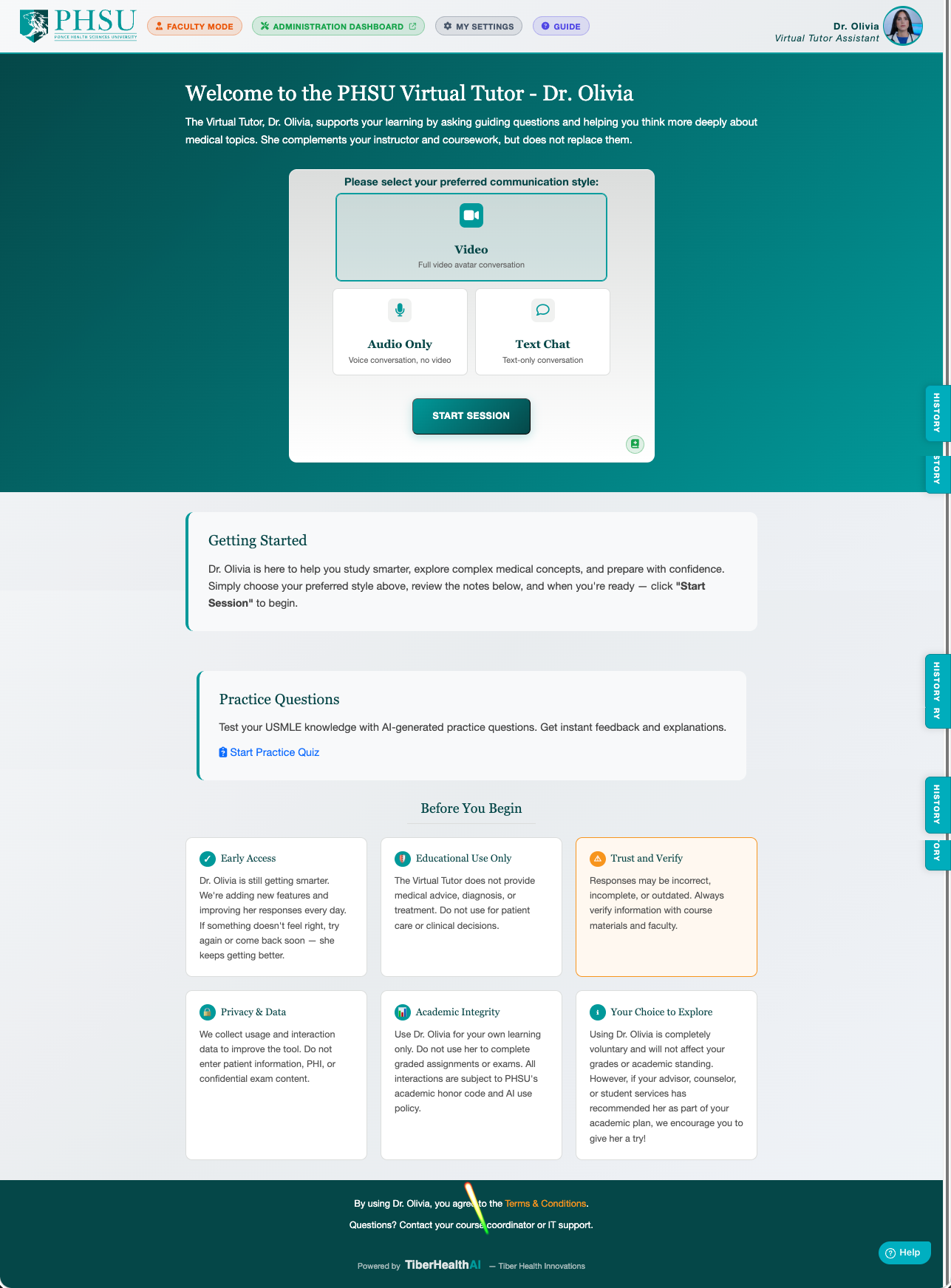
Header Pills
The top-right of the header surfaces context-aware pills:
- Faculty Mode — only shown when you're signed in as Faculty. Dr. Olivia will use the Faculty prompt instead of the Socratic student prompt.
- Acting As User — only shown when an admin is impersonating someone via the Act-As override.
- Administration Dashboard — admin-only link that opens the Administration Dashboard in a new tab.
- My Settings — opens the My Settings dialog.
Which Experience Am I In?
Dr. Olivia teaches from a different prompt depending on who signed in. The experience is decided at sign-in — there's nothing to switch, and it doesn't change mid-session.
- Student (Socratic) — the default for students at PHSU and its partner institutions. Guided discovery, cited course materials, and textbook figures from your curriculum.
- Faculty — instructors, and staff listed as support users. Signalled by the Faculty Mode pill above.
- Consumer — learners outside the PHSU network, studying toward a health sciences licensure degree. The same Socratic teaching, but without source citations, textbook figures, or the materials list. See the Release Notes for what differs.
- Guided assignment — a session launched from a Canvas assignment works an instructor's rubric rather than following your questions. It applies to that session only.
Choosing a Conversation Mode
The center of the page lists the conversation modes available to you:
- Video with Avatar — The full Dr. Olivia avatar experience. You see her, she sees you (camera + mic). Best for active study sessions.
- Audio with Avatar — Same as Video, but your camera stays off. Use when you don't want to be on camera but still want voice.
- Text Chatbot — Type-only. Markdown is rendered. Best when you're in a quiet setting (library, lab) or want to keep a written record.
Click the card for the mode you want. You'll move into the corresponding session.
Choosing Your Tutor
Dr. Olivia leads a team of virtual tutors. When more than one tutor is available, your current tutor appears in the top-right corner of the page — tap it to open a quick pop-up and pick the face and voice you'd like to learn with. Every tutor is part of Dr. Olivia's team and teaches the same way, so it's purely a matter of preference. Dr. Olivia is the default, your choice is remembered for next time, and choosing is always optional. (Text Chat is always Dr. Olivia.)
Continuing a Previous Session
Each session has a Continue action in the history list. Selecting it restarts the conversation with full context — Dr. Olivia remembers the previous greeting, the last topic, and any images that were generated.
Sessions you've ended are not deleted — ending is reversible. Re-opening a session counts as the same conversation, not a new one.
System Banners
Administrators can post a banner that appears at the top of the page (informational, warning, or notification). If the banner is set to Once mode, it disappears after you dismiss it; if it's set to Always, it stays until the admin removes it.
Status Badges
Below Dr. Olivia's portrait, small status badges appear when certain features are configured for your account — for example, the PubMed badge means your personal PubMed API key is in use, giving you higher rate limits on biomedical literature lookups.