
Admin Sessions Admin Only
The Sessions page is the audit trail for every conversation. Use it to review student interactions, troubleshoot pipeline issues, copy transcripts to share with faculty, and inspect generated images.
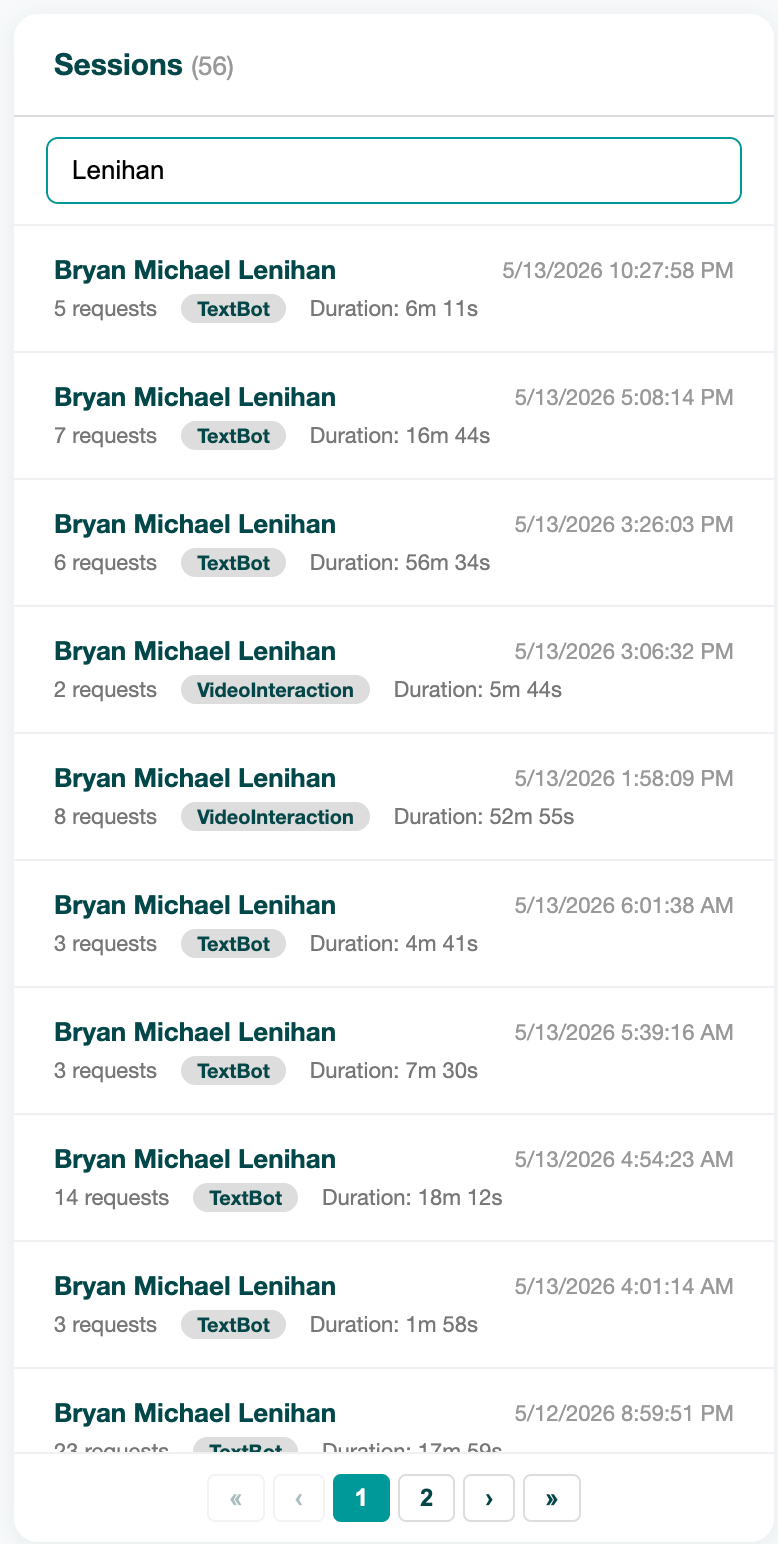
Layout
The page is split into a left list and a right detail pane:
- Left: sessions list with quick filters (date range, user, mode, status).
- Right: detail pane that scrolls independently — conversation accordion, model calls, tool calls, generated images, summary.
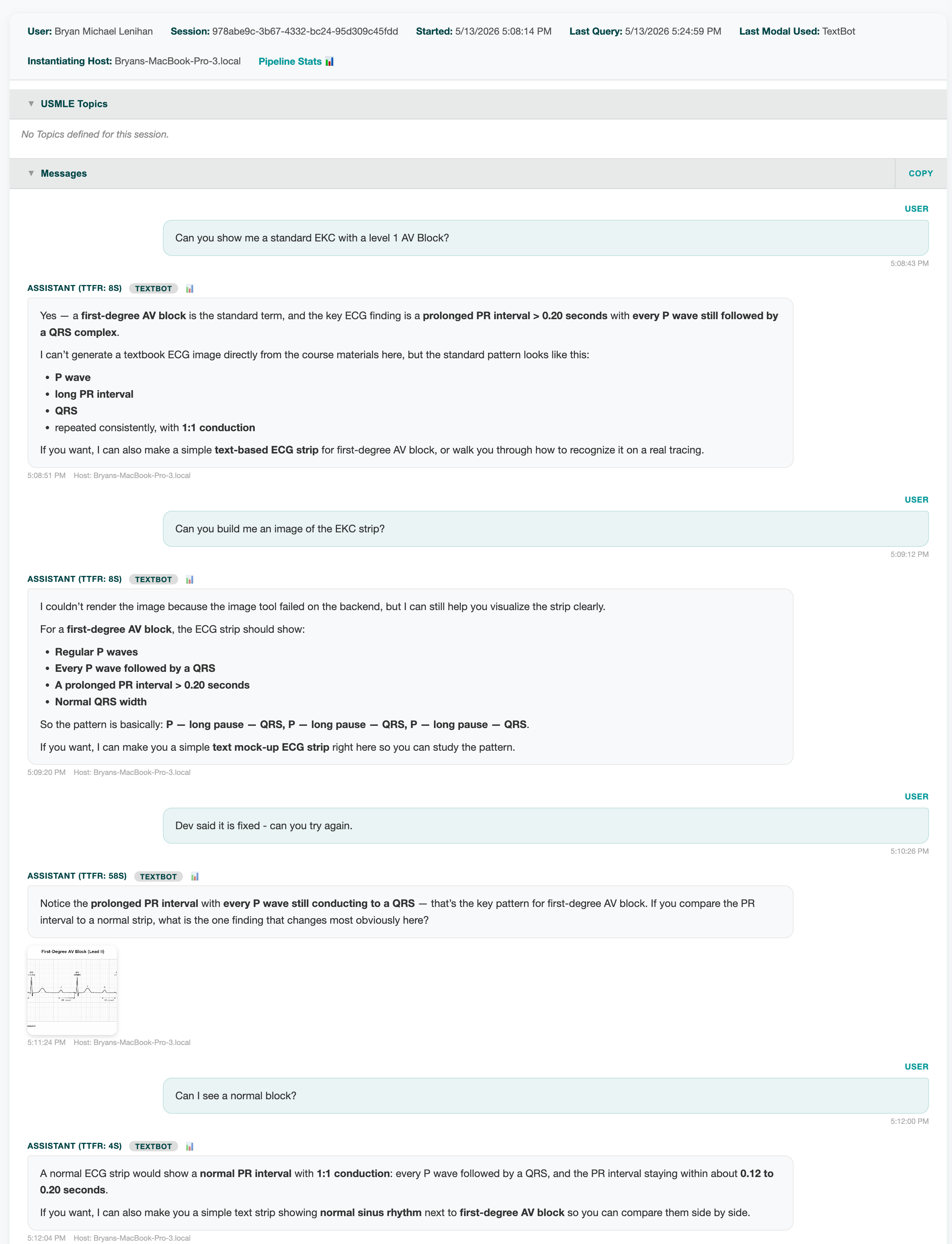
Conversation Accordion
Each request/response pair is one accordion entry. Expand to see:
- The full user message and Dr. Olivia's reply.
- Inline thumbnails of any images generated for that turn (click to enlarge).
- A Copy button that puts a markdown-formatted version of the entire conversation onto your clipboard — ideal for pasting into a ticket, email, or faculty review.
Tool / Model Logs
Below the conversation, every tool invocation (Canvas, PubMed, Materials, Image Generation, …) is listed with timing, status, and the raw arguments. This is the first place to look when a session went sideways — you'll see exactly which tool failed and what it was passed.
Filtering
- Date range — today, last 7 days, custom.
- User — search by Canvas DimId or email.
- Mode — Avatar (video / audio) vs. Text Chatbot.
- Status — Open, Closed, Errored.
- Has Images — quick filter to find sessions where the image generator ran.
Continued Sessions
When a student re-opens a closed session (via "Continue" on the Selection page), it does not create a new row — the session continues. The accordion will show all turns from both halves of the conversation, including the gap when it was closed.
Act-As Sessions
Sessions started while an admin was impersonating a student appear with the impersonated student's identity, but a small badge marks the session as Act-As and links back to the real admin. The post-session email for these sessions is redirected to the real admin's address (see Act-As guide).