
Act-As (Impersonation) Admin Only
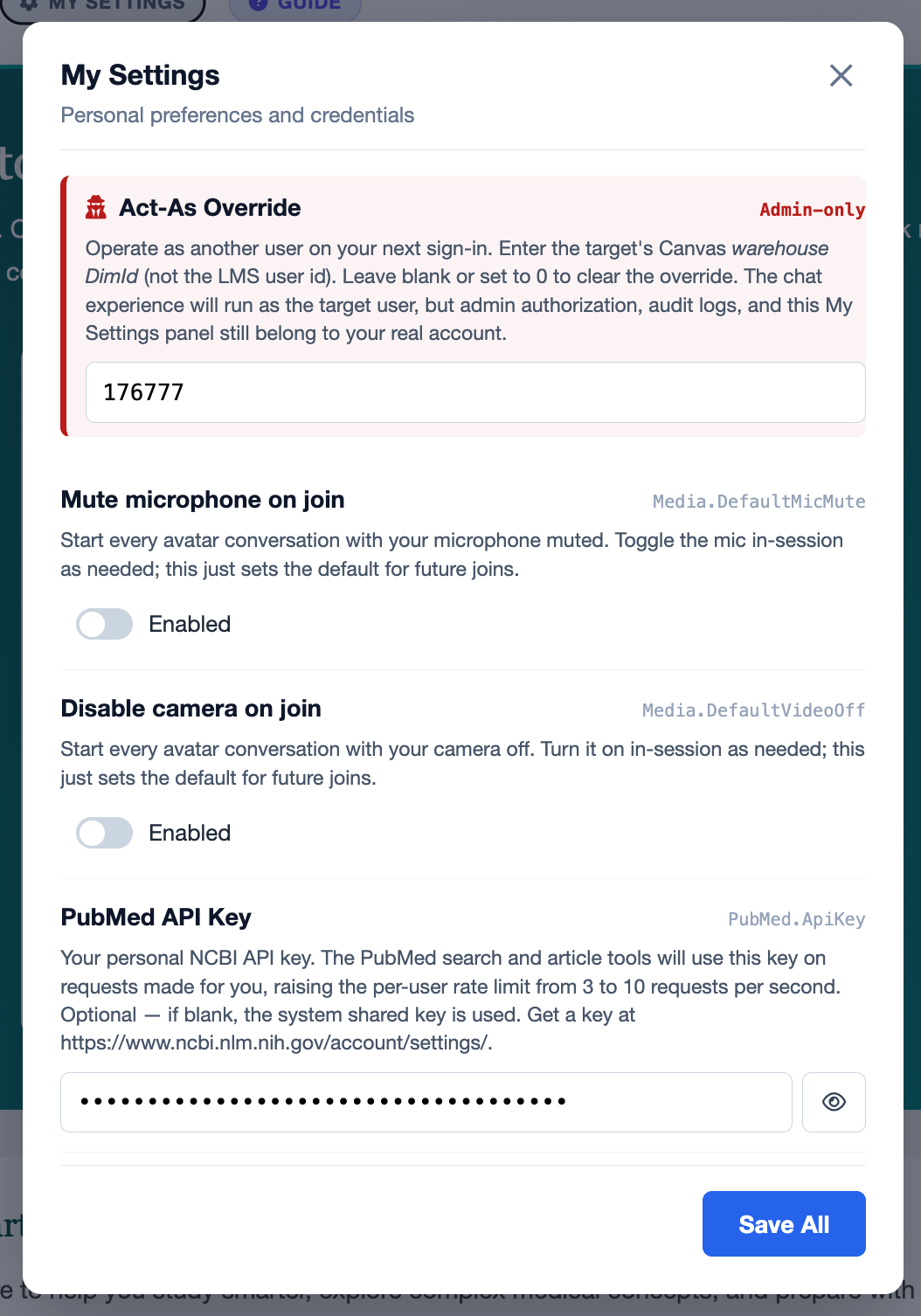
Act-As lets a designated admin sign in and operate as another user. The chat experience runs as the target user (their courses, their summaries, their materials), but admin authorization, audit logs, and your personal settings still belong to your real account.
When to Use It
- Troubleshooting — reproduce a student's issue without asking them to share their account.
- Demos — show the experience as a representative student (e.g. one with a populated USMLE history).
- QA / regression testing — test as a faculty user vs. a student user back-to-back without juggling logins.
Setting an Override
- Sign in as yourself (your normal admin account).
- Open My Settings from the gear icon.
- At the top of the dialog you'll see a red-bordered Act-As Override section.
- Enter the target's Canvas warehouse DimId (not the LMS user id). Look this up in the warehouse if you don't know it.
- Click Save All. Sign in again to apply.
- You're now operating as the target user. The header on every screen shows the Acting As User pill so it's never invisible — even on a screen share.
Clearing an Override
Open My Settings, blank the field (or set it to 0), and Save All. The system
writes a soft-clear row to TutorUserOverrides (Active=false,
EffectiveDate=now) instead of deleting — so the audit history of when an
admin started and stopped impersonating is permanent.
Behavior During an Act-As Session
| Subsystem | Identity used |
|---|---|
| Chat / Tutor pipeline (prompts, materials, history) | Effective (impersonated) |
| Image cache lookups | Effective (per-institution scope still applies) |
| USMLE/ExamSoft analytics | Effective (impersonated) |
| Canvas API calls | Effective (impersonated) |
| Admin dashboard authorization | Real admin |
| Audit log attribution | Real admin |
| My Settings / personal API keys | Real admin |
| Post-session email (recipient) | Real admin (so the impersonated student doesn't get bogus mail) |
| Global user learning summary | Skipped entirely (don't pollute the student's profile) |
What the Impersonated User Sees
Nothing. Act-As does not affect the target user's own sessions. They cannot see that they're being impersonated — the override exists only on the admin's session and is local to that admin's browser.