
Text Chatbot
The text chatbot is the lightweight, type-only experience — no camera, no microphone, no avatar video. Choose this mode when you're studying in a quiet space (library, lab, classroom) or when you'd rather have a written transcript than a spoken conversation.
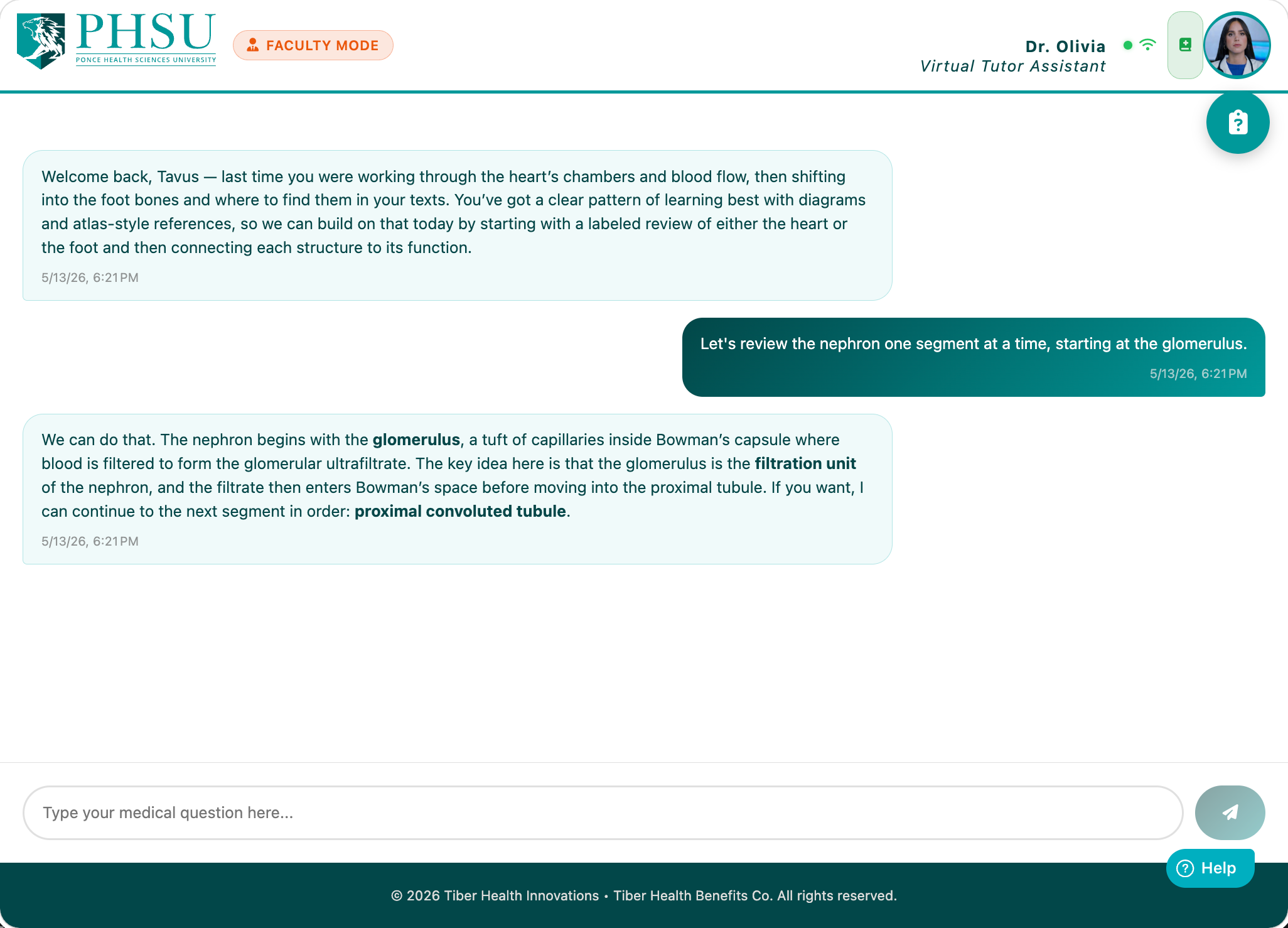
Sending a Message
- Type your question in the input box at the bottom.
- Press Enter to send (or click the send button). Shift + Enter inserts a newline.
- Dr. Olivia's response streams in token-by-token in real time.
Markdown Rendering
Dr. Olivia's replies use full markdown — headings, bold, italic, lists, tables, code blocks, blockquotes. The text chatbot renders all of it inline.
- Code blocks get syntax-highlighted styling and a monospace font.
- Tables render as proper HTML tables.
- Links open in a new tab.
Inline Images
When Dr. Olivia generates an image (see Image Generation), it appears in-line in her reply bubble. A pulsing "CRT-scan" placeholder shows while the image is being created, then swaps in-place to the final image when it's ready. Click the image to open it full-size.
Rating a Response
Each of Dr. Olivia's replies has thumbs-up and thumbs-down buttons next to the timestamp. Click thumbs-up when a response was genuinely helpful, or thumbs-down when it missed the mark. Click the same thumb again to clear your rating. Ratings are private feedback to the development team — no score is visible to other students.
Continuing a Past Session
Past chats are listed under your conversation history. Selecting one drops you back into that session with full context. Generated images from previous sessions stay in the transcript as clickable thumbnails.
Ending a Session
The End Session button in the top-right of the header closes out your chat and takes you to a quick feedback screen, where you can rate the session and add an optional comment before returning to the avatar selection page. Clicking the PHSU logo does the same thing — it routes you through the feedback screen on the way back to selection. Either way you can skip the rating and go straight back if you prefer.
Tutor Status Indicators
While a reply is being generated, a small status line appears under the input:
- Searching course materials… — pulling from your indexed lecture and textbook content.
- Reviewing your USMLE/ExamSoft results… — fetching analytics.
- Looking up Canvas assignments… — calling the Canvas API.
- Looking up PubMed literature… — querying biomedical databases.
- Generating image… — image-generation tool is running.
Header Pills
The same Faculty / Acting-As pills described on the Selection page guide also appear in the chatbot header so you always know who Dr. Olivia thinks she's talking to.