
Administration Dashboard Admin Only
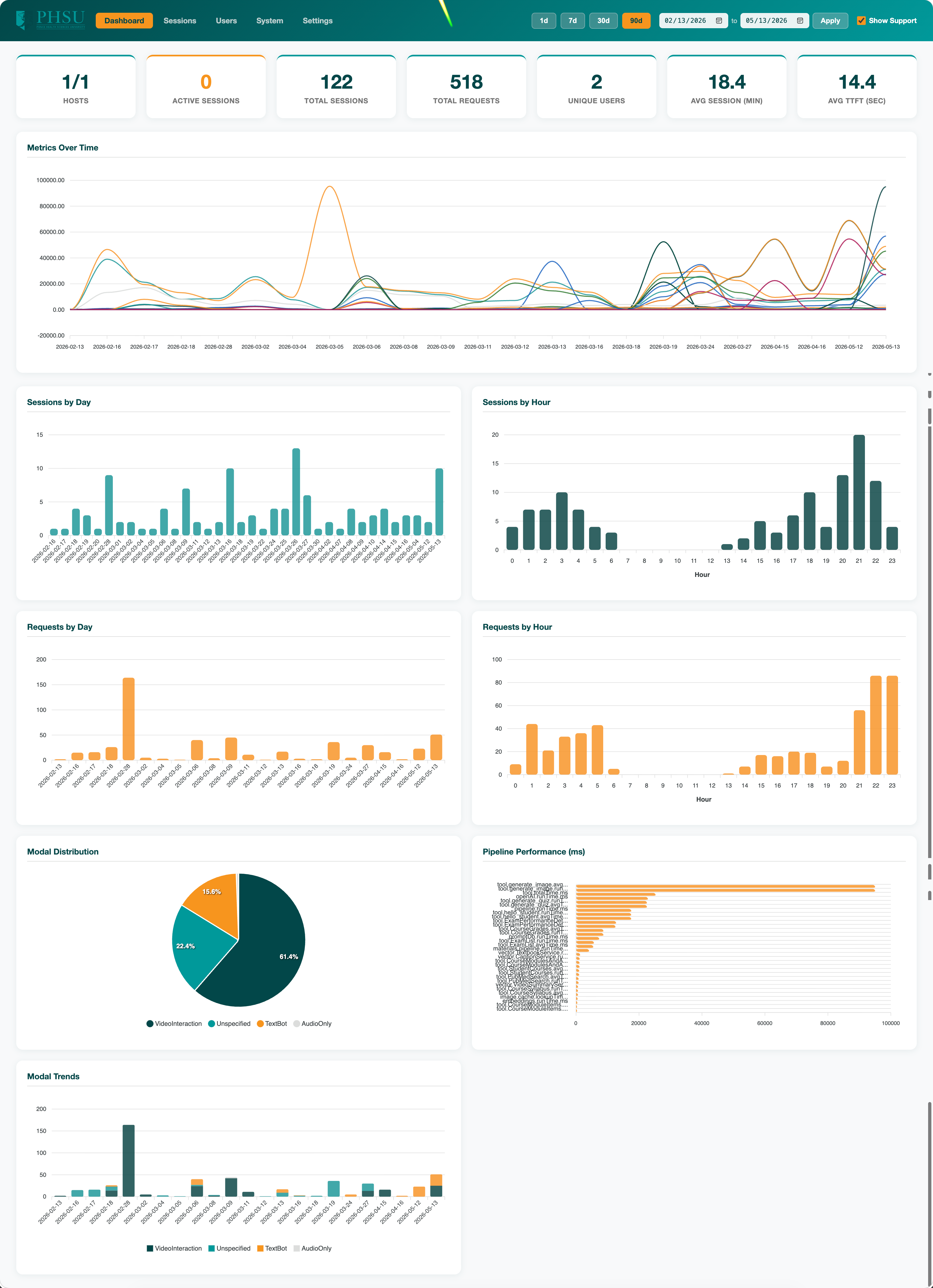
The dashboard is the operational hub for staff — site banners, prompt management, tool registry, system health, and session auditing. Open it from the Administration Dashboard pill in the Selection-page header (admins only).
Identity
All admin authorization — including audit log entries — uses your
real account, never the impersonated identity. If you have an Act-As
override active, the dashboard still treats you as yourself.
Sections
| Section | Purpose |
|---|---|
| Sessions | Browse student conversations, copy transcripts, view generated images. See Admin Sessions guide. |
| System Banners | Post site-wide messages (info / warning / error / notification). Choose Once mode (dismissible per user) or Always (sticky until removed). |
| System Prompts | View and edit the master prompt for each replica/methodology pair. Edits propagate across the cluster on demand — no restart needed. |
| Avatars | Manage the tutors students can choose: add, edit, reorder, hide, and set the single default. Each avatar carries its Tavus replica, Cartesia voice, optional speed and photo. Changes go live within a minute; deleting an avatar that has session history hides it instead so past sessions still resolve. |
| Tools | Inventory of every external tool plug-in (Canvas, ExamSoft/TPV, PubMed, Course Materials, Image Generation, …) and their schemas. |
| Generated Images | Audit of every image generated by the system, with the original user prompt, the LLM-rewritten generator prompt, and cache-hit telemetry. |
| Maintenance Mode | Locks out new sign-ins so you can deploy without surprising students. The landing page surfaces a maintenance banner when this is on. |
Cache Refresh
Prompts and tool registries used to require a server restart. They now refresh on demand: when you save a prompt or register a new tool, every server instance in the cluster picks up the change within a fraction of a second — no restart, no waiting around, no surprises for in-flight student sessions.
Where to Look First During an Incident
- Sessions page — check whether recent sessions are completing normally, look for repeated errors in the model/tool log column.
- System Banners — post a maintenance banner so users know the team is aware.
- Maintenance Mode — only when you need to stop new sign-ins entirely.