Signing In
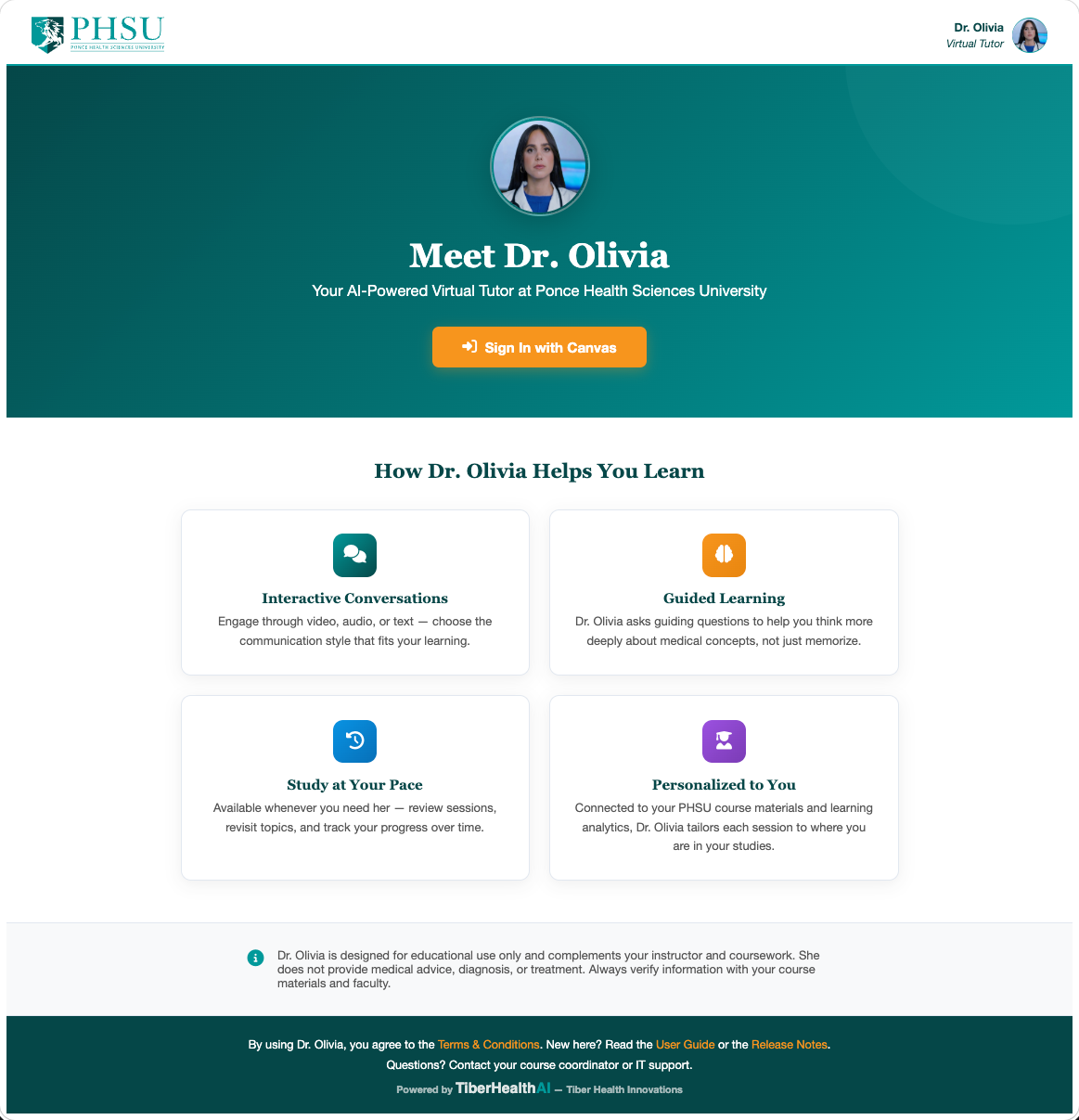
Dr. Olivia uses your existing school Canvas account — there is no separate password. It's available to PHSU and our partner institutions, and each school signs in through its own Canvas. When you click the Sign In with Canvas button, you are redirected to Canvas, you authorize the tutor once, and Canvas hands you back to Dr. Olivia.
Step-by-Step
- Open https://<your-tutor-host>/ in any modern browser (Chrome, Edge, Safari, Firefox).
- Choose your school. If you're asked, pick your institution from the “Select your school” box — type your school's name or code to filter the list. Arriving from a link inside your school's Canvas, or from your school's own Dr. Olivia address, selects it for you, so you may skip straight to the next step.
- Click the Sign In with Canvas button on the hero section.
- Sign into Canvas if you are not already signed in.
- The first time only, Canvas will ask you to authorize Dr. Olivia. Click Authorize.
- You'll land on the Selection Page, where you choose how you want to chat.
Maintenance Mode
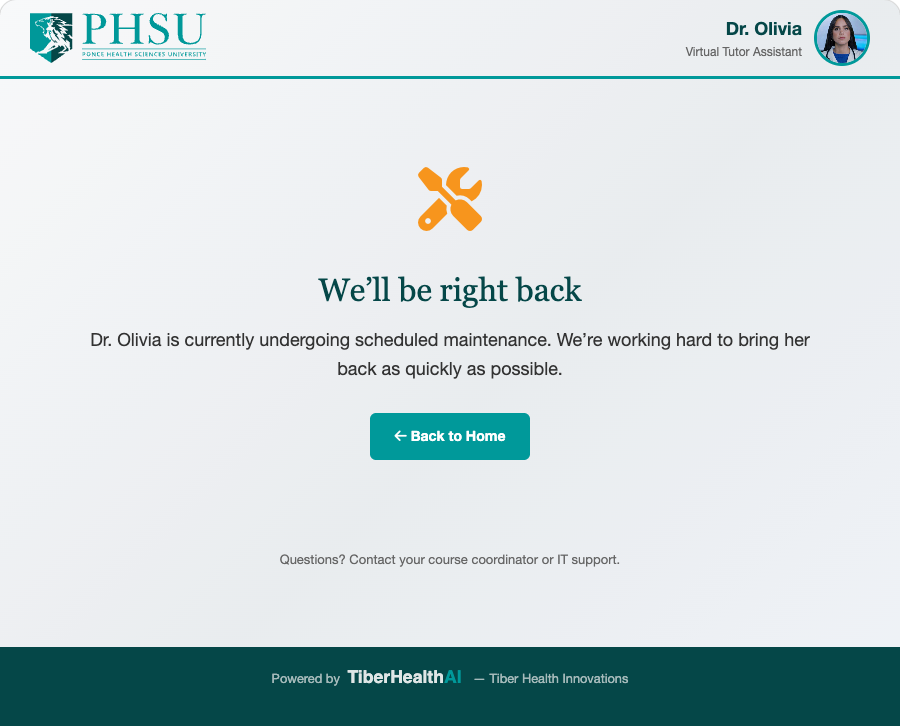
If you see a yellow banner that reads "Dr. Olivia is currently in maintenance mode", the system is being updated. The Sign-In button is disabled until an administrator turns maintenance off — please check back in a few minutes.
Troubleshooting
| Symptom | What to do |
|---|---|
| "No schools are available right now" on the sign-in page. | The school list couldn't be loaded — usually a brief connection hiccup. Refresh in a minute; if it persists, contact your course coordinator or IT support. |
| Your school isn't in the "Select your school" list. | Only partner institutions that have been set up appear here. If your school should be listed, contact your course coordinator so it can be added. |
| "Authorization failed" after the Canvas redirect. | Sign out of Canvas in another tab, then retry. If it persists, contact IT — the Canvas integration may need a refresh. |
| You land on the Selection page but see "No conversation modes are available." | The administrator has not enabled any modes yet for your account type. Reach out to your course coordinator. |
| You're sent back to the landing page in a loop. | Your session cookie may be blocked. Allow third-party cookies for the tutor host, or try a different browser. |
Privacy
Dr. Olivia only sees the Canvas information needed to identify you and pull your
course materials. Your Canvas password is never shared with the tutor.