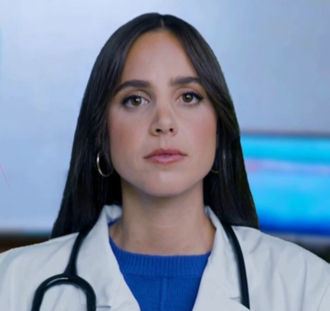
Uploading Documents
You can hand Dr. Olivia a file and work through it together — a paper you've been assigned, a worksheet from a professor, your own notes, a set of practice questions. She reads it and the two of you take it from there.
How to upload
| Where you are | What to click |
|---|---|
| Avatar — video or audio | The Upload button in the toolbar at the bottom of the screen |
| Text chatbot | The paperclip beside the message box |
In an audio session she'll tell you out loud when the file is ready, so you don't need to be watching the screen.
What you can upload
- PDFs — papers, handouts, worksheets, slide exports
- Text files —
.txt,.md, or anything you've saved as plain text
Up to 20 MB and 300 pages per file, and up to 50 files saved at a time.
Word documents and PowerPoint files aren't accepted directly — export them as a PDF first and upload that.
Scans and photos won't work
Dr. Olivia reads the text in a file. If your PDF is a scan or a photo of a page, there's no text in it to read — only a picture of one. She'll tell you straight away rather than guessing at what it says.
If that happens, the fix is usually to get a text-based copy: download the original from Canvas or the publisher rather than photographing a printout. Failing that, tell her what it says and she'll work from your description.
What she does with it
- Short files she simply reads in full
- Longer ones she searches as you go, pulling up the part that matters to what you're asking
- She'll tell you the page she's reading from, so you can follow along in your own copy
She'll also tell you when an upload disagrees with your course materials. That's not her being difficult — handouts can be dated or simplified, and working out why two sources differ is usually more useful than either one on its own.
Your files stay yours
- Only you can see what you upload. Other students can't, and nothing you upload goes into anyone else's session
- Files stay available across sessions — upload a paper today, come back to it next week without uploading it again
- You can delete anything you upload, any time, with the × on the file. That removes it for good
- Uploads are kept for 180 days and then removed automatically
Uploading a file is not the same as Dr. Olivia remembering something about you. What she records about your learning comes from how you work through problems with her — not from what a document happens to claim.
If something goes wrong
| What you see | What it means |
|---|---|
| "Only PDF and plain-text files can be uploaded" | It's a Word file, slides, an image, or something else. Export it as a PDF and try again |
| "That PDF contains embedded scripts, attachments or forms" | The file has active content in it, which we don't accept. Opening it and printing it to a new PDF usually clears it |
| "No readable text — this looks like a scan" | See Scans and photos above. Nothing is broken; there's just no text in the file |
| "You already have 50 documents saved" | Delete one you're finished with and upload again |
For faculty Faculty
You can upload your own files and ask about them the same way — a draft exam, a syllabus, a paper you're reviewing. Dr. Olivia will be direct about problems she finds: an ambiguous stem, a distractor that doesn't work, a mismatch with the material it's meant to assess.
Files you upload go on your record, not a student's, and students never see them.