Image Generation New
Dr. Olivia can draw diagrams, anatomy sketches, ECG strips, flowcharts — anything that helps a concept land. Just ask, in plain language. There is no special button: the tutor decides on her own when an image would help and calls the image generator behind the scenes.
How to Ask
- "Can you draw me a normal ECG and label each wave?"
- "Show me a side-view diagram of the cardiac conduction system."
- "Sketch the brachial plexus with the major nerves labeled."
- "Make me a flowchart of the renin-angiotensin pathway."
What You'll See
- Pending placeholder — an animated CRT-scan placeholder appears immediately, sitting inside Dr. Olivia's reply bubble, so you know the request is in flight. In the text chatbot a freshly generated image then renders progressively — a rough draft shows through the scan line first and sharpens into the finished diagram, so you can see it taking shape rather than waiting on a blank box. (Instant cache hits skip straight to the final image.)
- Dr. Olivia tees it up and keeps teaching — she briefly frames what the diagram will show ("When the image renders, you'll see the conduction path from the SA node to the Purkinje fibers…") and continues teaching the topic. Any Socratic question she asks is wrapped in "once you see it" language so you know to wait for the image before answering. You can interrupt or ask follow-ups at any time.
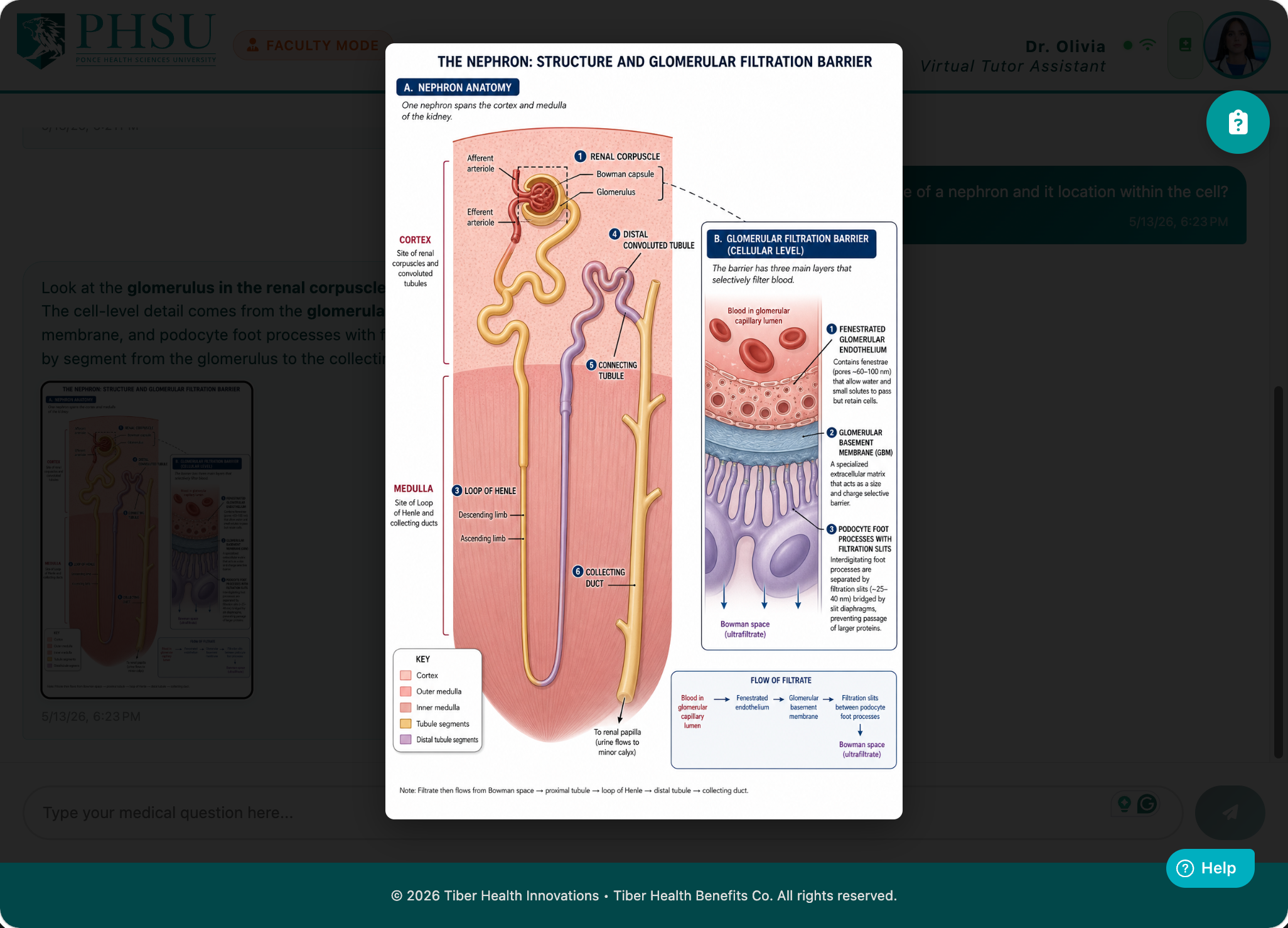
- Final image — the placeholder swaps in-place to the finished image, embedded in her reply. Clicking it opens it full-screen, where an Open in new tab button lets you pop the generated image out into its own browser tab to save or view full-size. (Textbook figures show their publisher citation in that view instead, since they come from copyrighted source material.) In the avatar, the full-screen view shrinks the avatar tile to a small floating window in the bottom-right corner so you can see both the image and Dr. Olivia at the same time. If something genuinely fails — or the connection drops while the image is rendering — the placeholder stops scanning and shows a clear "Image failed" state instead of spinning forever, so you know to just ask again and the next try usually lands.
Quality and Shape
Diagrams are rendered at a high quality setting, so labelled structures stay legible when you open one full-screen rather than blurring at detail.
The shape is chosen to suit the subject. A spinal column, a full body, or a cell with a lot of vertical detail comes back tall; a metabolic pathway, a conduction route, or a timeline comes back wide; most other things come back square. You don't need to ask for a shape — it's read from what you asked to see. If you do want to force one, say so ("draw that as a wide diagram") and Dr. Olivia will pass it through.
Higher quality takes a little longer to render. The scanning placeholder is doing its job during that time; it is not stuck.
Avatar Mode: Image & Dr. Olivia Side by Side
When you click an image to open it full-screen in avatar mode, Dr. Olivia smoothly shrinks to a small floating tile in the lower-right corner of the left video panel — like a Zoom screen share. The transcript on the right stays where it is, and you can keep talking to her about what's on the screen without losing sight of either.
- Hide Dr. Olivia — click the × on her shrunken tile. The button morphs into a Show Dr. Olivia pill in the same corner so you can bring her back with one click. (It's the same button toggling between two shapes — not two separate controls.)
- Close the image — click the × at the top of the image overlay (or click outside the image). The avatar tile animates back to full size automatically.
Caching
Generated images are cached per institution for 180 days. If a classmate has already asked for the same diagram (or you've asked for it in a previous session), Dr. Olivia returns the cached image instantly — she won't call it out; the image just appears in your bubble like any other.
The cache uses semantic similarity, not exact text match — so "normal 12-lead ECG" and "example of a normal ECG strip" will both hit the same cached image.
In the Transcript
Each image gets its own bubble in the transcript. Click the thumbnail to re-open the full image at any time. Past sessions you continue from will keep their image thumbnails visible too.
In the Email Summary
The post-session email includes thumbnails of every image generated during the call, each linking to the full-resolution version. Useful for review later when you're not in front of the tutor.
Pictures Straight From Your Textbook New
Not every picture is drawn on the spot. When a diagram from your course textbooks fits the concept, Dr. Olivia shows you that actual figure instead — the real, instructor-vetted image from the source material, so it matches your books exactly. You don't have to ask for it by name; she brings it up when it helps, at most one per reply.
Textbook figures appear in your chat bubble and in the post-session email just like generated images do — click the thumbnail to open the full figure. The difference is simply where the picture comes from: a textbook figure is pulled from your curriculum, while a generated image is a fresh illustration Dr. Olivia creates for you.
Because a textbook figure is a real published image, it shows a small credit line beneath it — the book title, author, edition, figure number, chapter, and page (whatever is on record for that figure). The same credit appears under the figure in your summary email, and when the book has a source link the credit is clickable. Generated images carry no credit, since Dr. Olivia made them for you.
This also kicks in when you ask for a picture: Dr. Olivia checks your textbooks first, and if a real figure already shows what you asked for, you'll get that exact image rather than a drawn one. Only when nothing in your books fits does she generate a new illustration — so you always get the most accurate picture available, automatically.
The words you use steer this. If you ask to be shown something — "show me…", "what does … look like", "describe…", "find a diagram of…" — she looks for the real textbook figure first. If you ask her to create one — "draw me…", "sketch…", "illustrate…", or anything very specific and custom — she draws it for you instead of pulling a stock figure. So phrase it the way you want it: "show me" for the real thing, "draw me" for a fresh illustration.
Not What You Wanted? Just Say So New
If the picture isn't what you were after, tell Dr. Olivia in plain words — "that's not right", "show me a different one", "add labels", "show it from the side", or "now show the abnormal version". She won't hand you the same image again: she looks for a different matching textbook figure first, and if none fits she draws a fresh one for what you actually asked. Keep refining as many times as you need — each request gives you something new.
Limitations
- Dr. Olivia cannot generate images of real people, copyrighted artwork, or anything outside an educational/medical context.
- If a generation fails, she'll tell you and offer to try again with a re-worded prompt.
- Images are educational illustrations, not clinical-grade reference material. Always cross-check with your textbooks and faculty.